We’ve strengthened account security in Motional with the introduction of Multi-Factor Authentication (MFA) options, including Passkeys, Two-Factor Authentication (2FA), and integration with 3rd Party Identity Providers.
You’ll now see a “Protect your account” prompt on your Dashboard encouraging you to set up at least one additional security method. Once you’ve enabled a Passkey or 2FA, this message will disappear (and will reappear if you later remove them). You can always manage your settings from your Profile page - look at the very bottom of the Blue/Purple Sidebar. Click on the link to open:
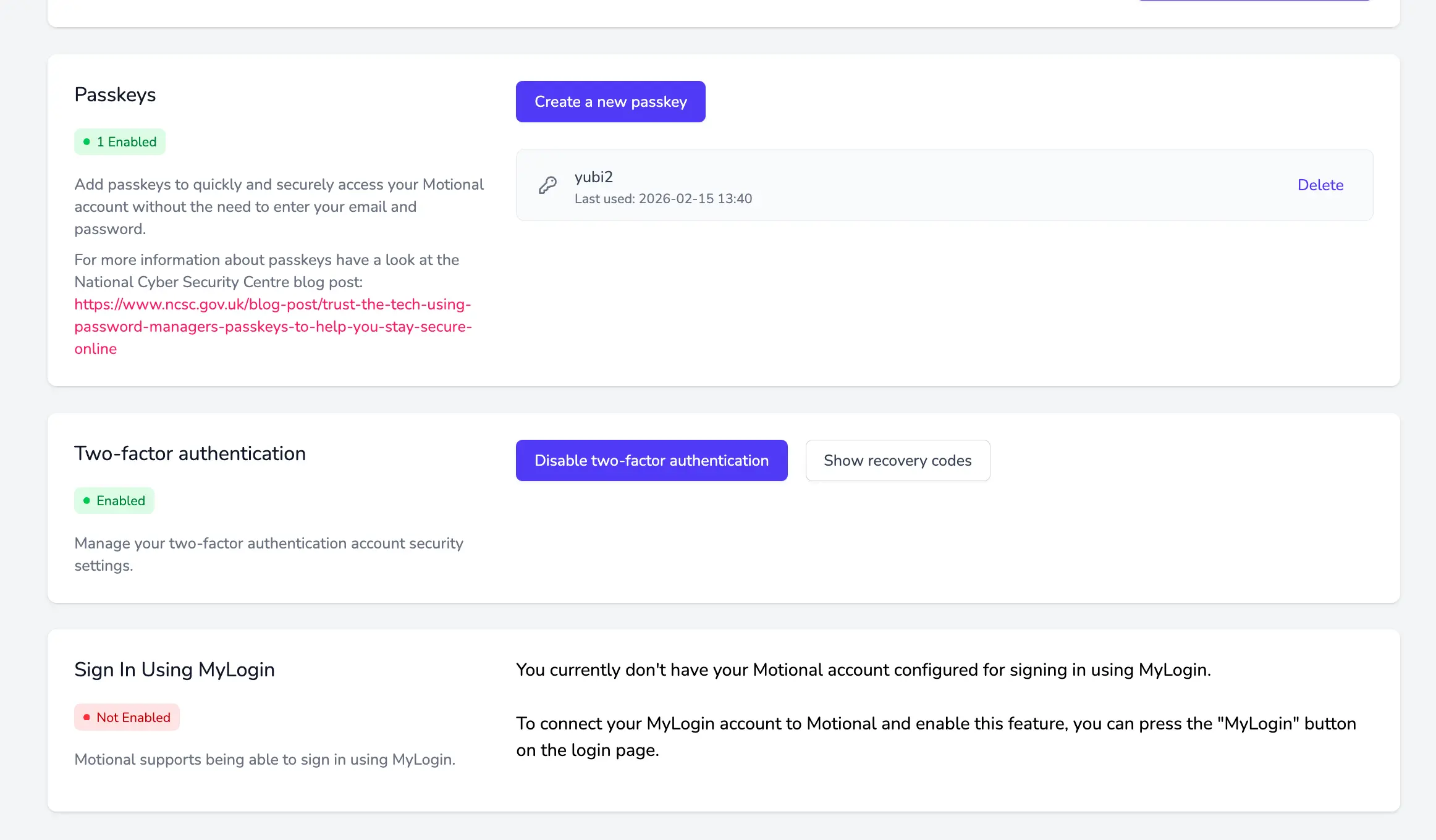
At the moment, MFA is not mandatory - you can continue to log in with your email and password. However, in line with ongoing cyber security developments and school data protection requirements, this may become required in future updates. Team Admins will soon be able to enforce MFA, and can already filter Team Members by security status.
This update reflects our continued commitment to cyber and data security, including our Cyber Essentials and Cyber Essentials Plus certifications, and the high standards schools and settings working with young people expect around data protection.
What is MFA?
Multi-Factor Authentication (MFA) is an umbrella term for adding extra protection to your login.
In Motional, this includes:
- Passkeys
- Two-Factor Authentication (2FA)
- 3rd Party Identity Providers
All of these sit under the term MFA - they are different ways of strengthening access to your account beyond just a password.
What is a Passkey?
A Passkey is a fast, highly secure way to log in without typing your password.
It works by splitting a secure “key” into two halves:
- One half is stored securely on your device (e.g. your laptop or phone).
- The other half is stored securely by Motional.
When you log in, the two halves recognise each other and combine - giving you access.
A simple metaphor
Think of it like a biscuit broken perfectly in half:
- You keep one half.
- Motional keeps the other.
- Only when the two matching halves meet does the biscuit “fit” and unlock the door.
Because of this:
- Passkeys are unique to both the device and the site
- If you set up a passkey on your laptop, you’ll need to set up another one on your phone
- One device’s passkey won’t work on another device
Why is logging in with a Passkey so fast?
Passkeys are designed to be frictionless. If you click “Sign in with passkey”, you may be logged in almost instantly.
This speed can feel surprising if you’re new to them - but it’s normal. The security happens behind the scenes through cryptographic matching, rather than visible password entry.
In fact, Passkeys are more secure than traditional passwords and many forms of 2FA, even though they feel quicker.
Do Passkeys replace 2FA?
If you have both set up:
- Choosing Sign in with Passkey will log you straight in (it takes priority because it’s more secure and seamless).
- You can still use 2FA if you prefer.
Is this mandatory?
Not currently.
You can still log in using your email address and password.
However:
- Cyber security standards continue to evolve.
- Schools often have strict data protection requirements.
- MFA may become mandatory in future updates.
- Team Admins will soon be able to require it at organisation level.
We strongly recommend enabling at least one MFA option.
What should I name my Passkey?
When creating a Passkey, you’ll be asked to give it a name.
Choose something that clearly identifies the device, for example:
- Motional – Lou MacBook Pro
- Motional – School Laptop
- Motional – iPhone
This helps you recognise and manage your Passkeys later.
Important: Deleting a Passkey
If you delete a Passkey from your Motional profile:
- It removes the Motional-side half of the key.
- It does not remove the saved Passkey from your password manager or device.
This can cause confusion.
For example:
- You delete the Passkey from Motional.
- You click “Sign in with passkey”.
- Your password manager offers the old Passkey.
- You select it… and nothing happens.
This is because the Motional half no longer exists.
If login appears to “do nothing”, check:
- Do you still have a Passkey saved in your Motional Profile?
- If not, create a new one.
Should I follow my school’s policy?
Yes.
Some schools or organisations may have internal policies about:
- Whether staff should use Passkeys
- Whether 2FA must be used
- How passwords should be managed
We recommend checking your school or organisation’s IT and data security policy before making changes.
Why are we doing this?
This is an essential part of Motional’s commitment to:
- Protecting sensitive pupil data
- Meeting Cyber Essentials and Cyber Essentials Plus standards
- Supporting schools with their safeguarding and data protection responsibilities
Security is not an add-on - it’s part of creating safe digital environments for the adults who use Motional -and the Young People's data it holds.