Learn how to create a Program, add Advice and Activities, and export it for printing or PDF use.
The guide supports structured planning while keeping space for professional insight - helping you refine support so it fits the child or group, and what you’re noticing over time.
Motional Programs help you plan and deliver targeted support for a child, small group, or whole class at a specific point in time. Each Program is created from a completed Snapshot or Groupshot, ensuring your next steps are grounded in a whole-brain picture of wellbeing and readiness to learn.
Programs bring together three elements - Safety, Advice, and Activities - so you can prioritise safe conditions, use relational strategies that support regulation and reflection, and choose a small number of repeatable activities that build impact over time.
Following the creation of your Snapshot or Groupshot, click on the Create Program button on the Snapshot/Groupshot view page:
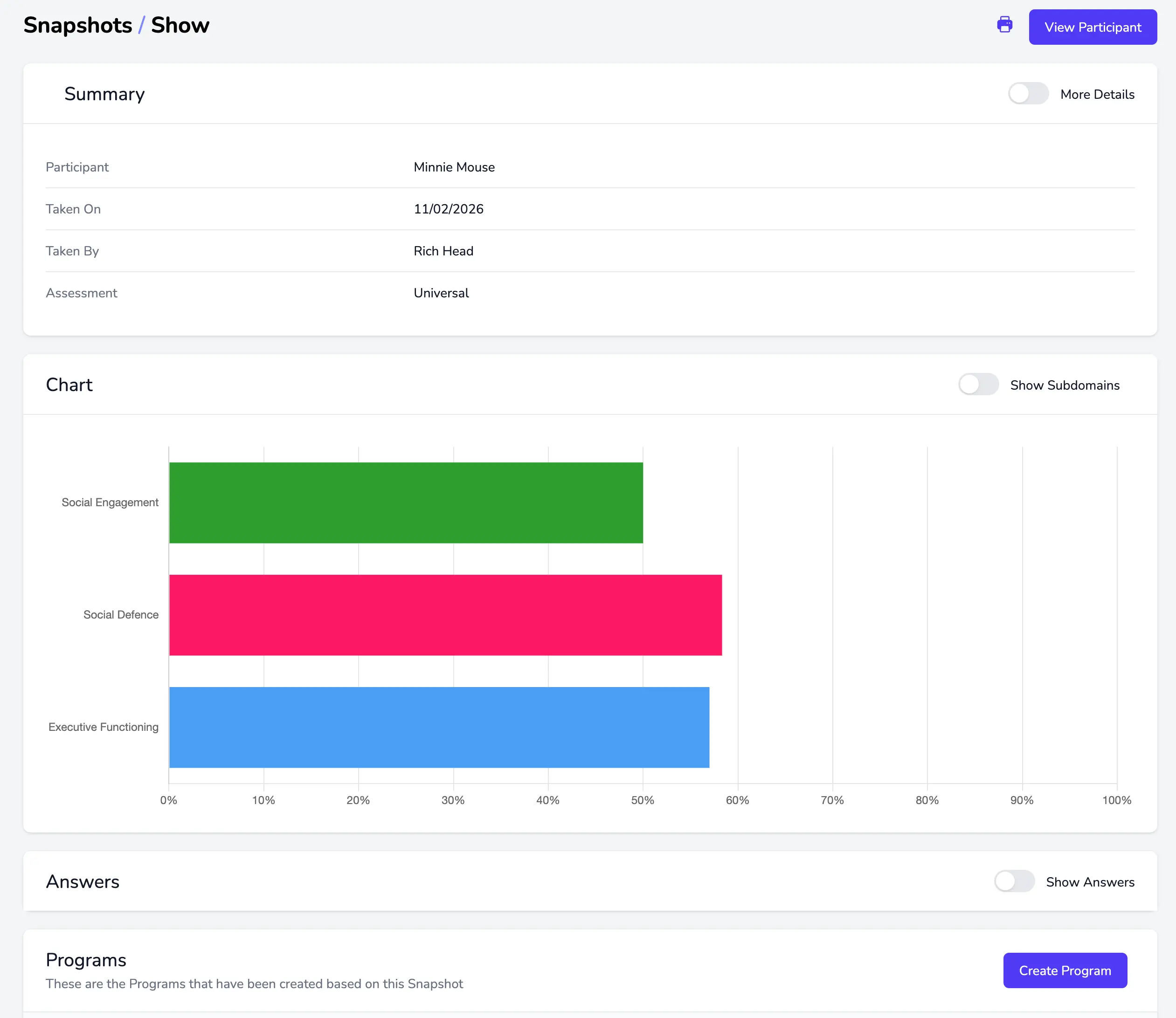
This will begin the creation process!
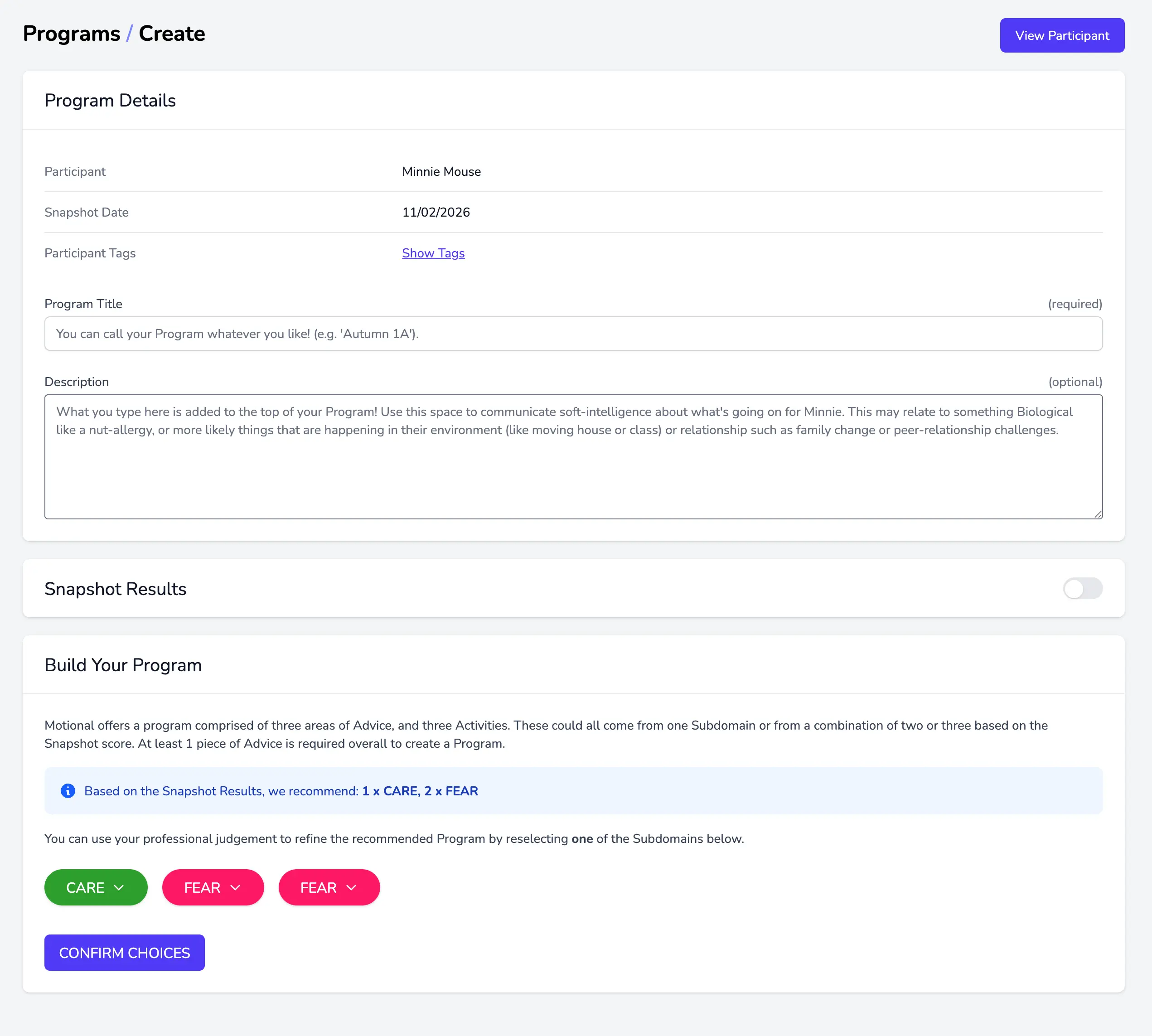
Follow the on-screen prompts to complete the Title and Description for your Program.
Motional then uses the Snapshot/Groupshot scores (viewable via the Snapshot Results toggle above) to generate a suggested Program focus. This includes three Subdomains to guide your next steps. Depending on the profile, these may be three different Subdomains, or a repeated Subdomain where the need is stronger.
You’ll see the selected Subdomains listed at the bottom of the page.
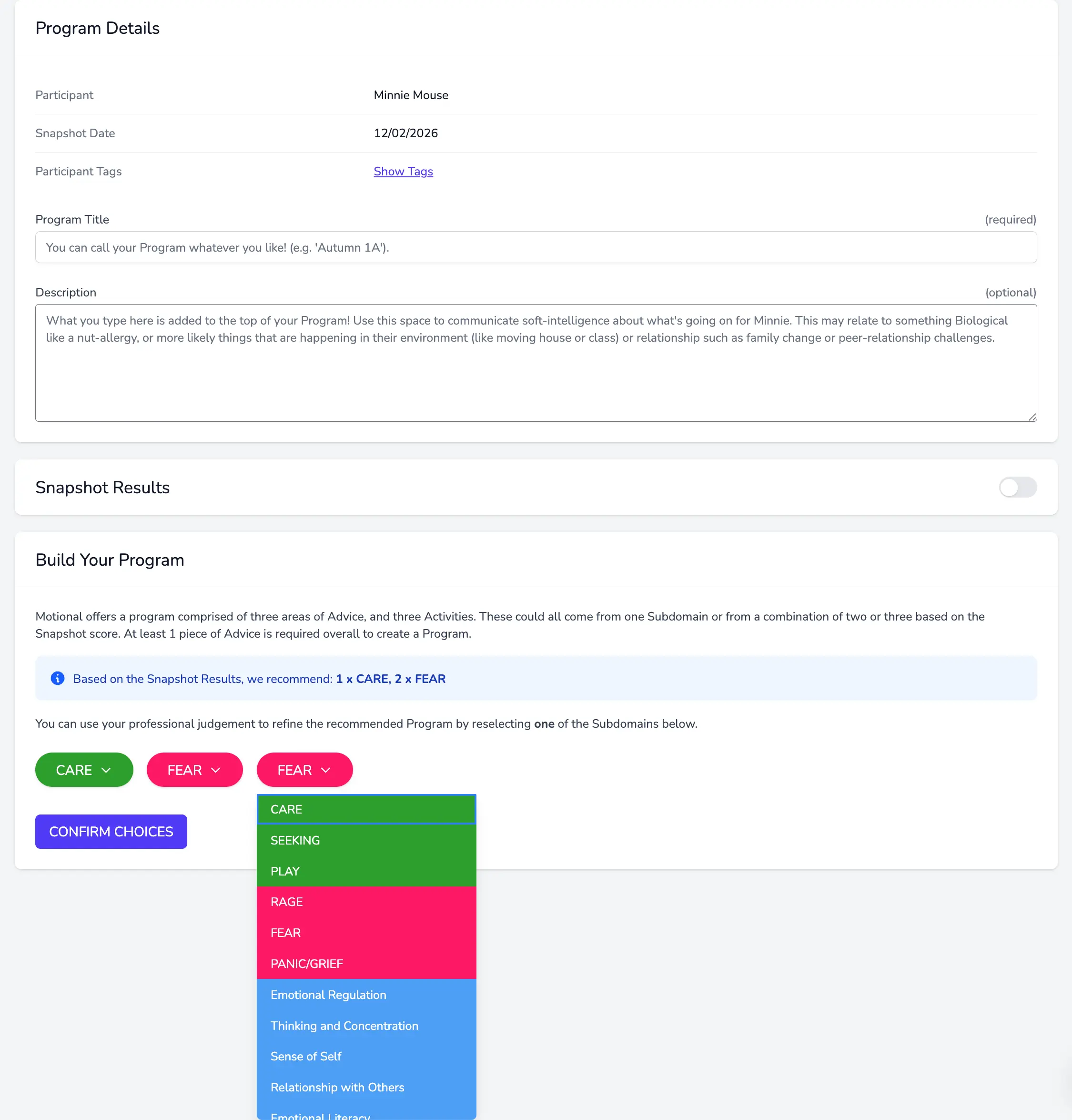
If you’re new to Motional, you may wish to simply click Confirm Choices at this point. However, you can also refine your Program by changing one of these Subdomains to an alternative, using your professional judgement to ensure the focus best reflects what you’re seeing in practice:
Once you’ve confirmed your Subdomains, you’ll be prompted to select Advice for the first Subdomain.
Each Advice card can be opened to view in full. When you’re ready, click Select Advice to add it to your Program.
The Advice section is aimed at the adult. If we want Relationship and Environment to develop, that begins with us - our responses, our tone, our pacing, and the conditions we create. The Advice cards focus on how adults can relate, regulate, and reflect in ways that support emotional safety and readiness to learn.
After selecting a card, you’ll be asked to confirm your choice. At this point, you can add additional Advice if appropriate, and you’ll see your Program begin to take shape in the Build Your Program section.
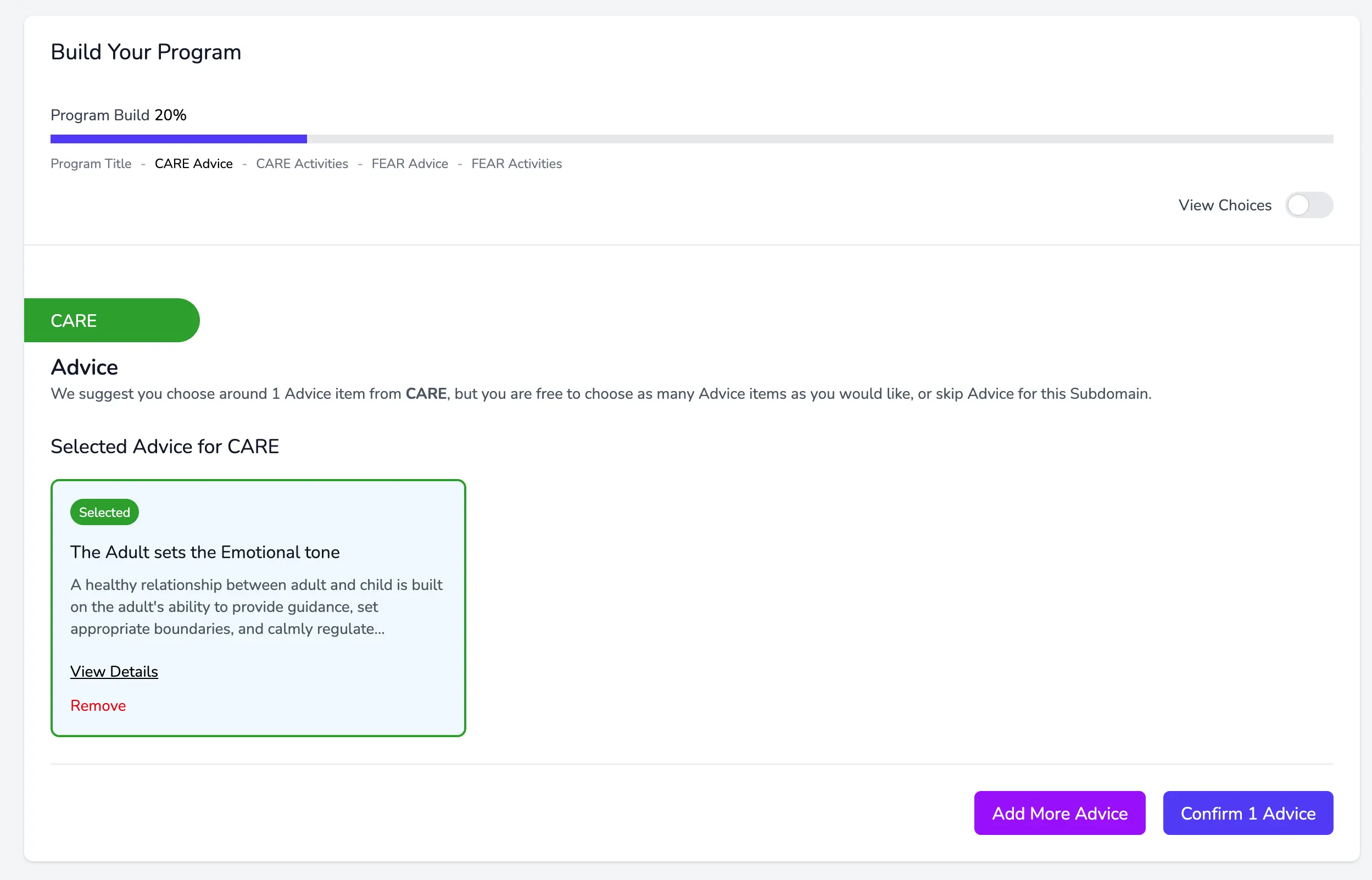
A note of caution: it can be easy to build an overly ambitious Program. Aim for focus and depth rather than volume - a smaller number of well-embedded strategies is usually more impactful than a long list that’s difficult to sustain.
Once you have confirmed your Advice, you will be prompted to complete a similar process to add Activities:
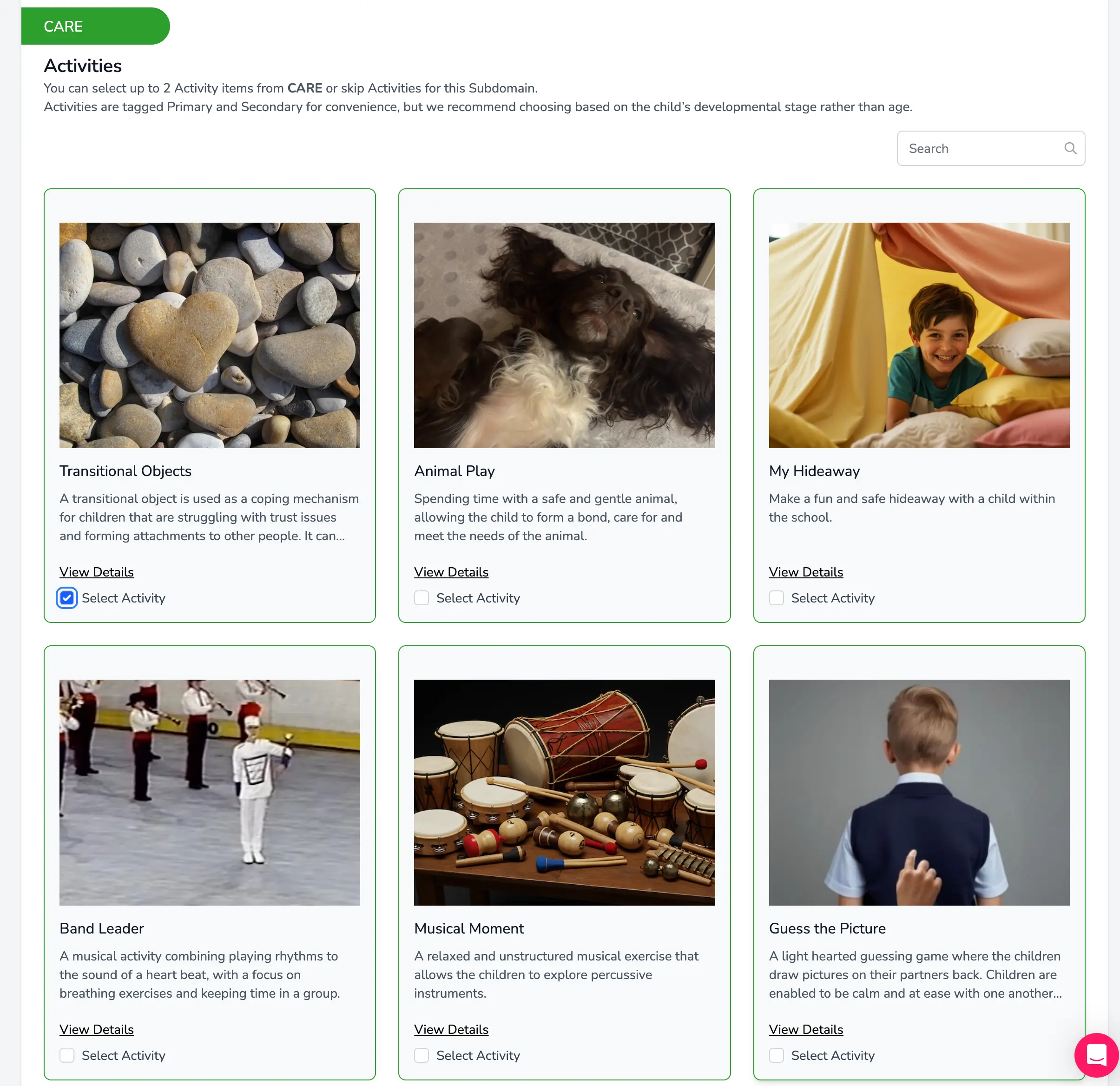
Activities are, by design, limited in number. Repetition is key in strengthening synaptic connections and supporting emotional learning over time. Each activity is intended to be adaptable - they are starting points that can be differentiated and developed to suit the child or group you are working with.
New and recently updated activities are clearly marked, as are those that include extension ideas to deepen or broaden the work where appropriate.
Once you’ve confirmed the Activity (or Activities) for this Subdomain, the same process is repeated for any remaining Subdomains in your Program. Depending on the Snapshot or Groupshot profile, you may be working with one, two, or three Subdomains.
At the end of this process, you’ll be prompted to Save Program. If you haven’t already added a title, Motional will remind you to name your Program before saving.
Congratulations! You’ve now finished building your Program, and it will open in view.
At the top of the page, you’ll see the Program details, along with options to view the Snapshot results and the Safety section (which is consistent across all Programs).
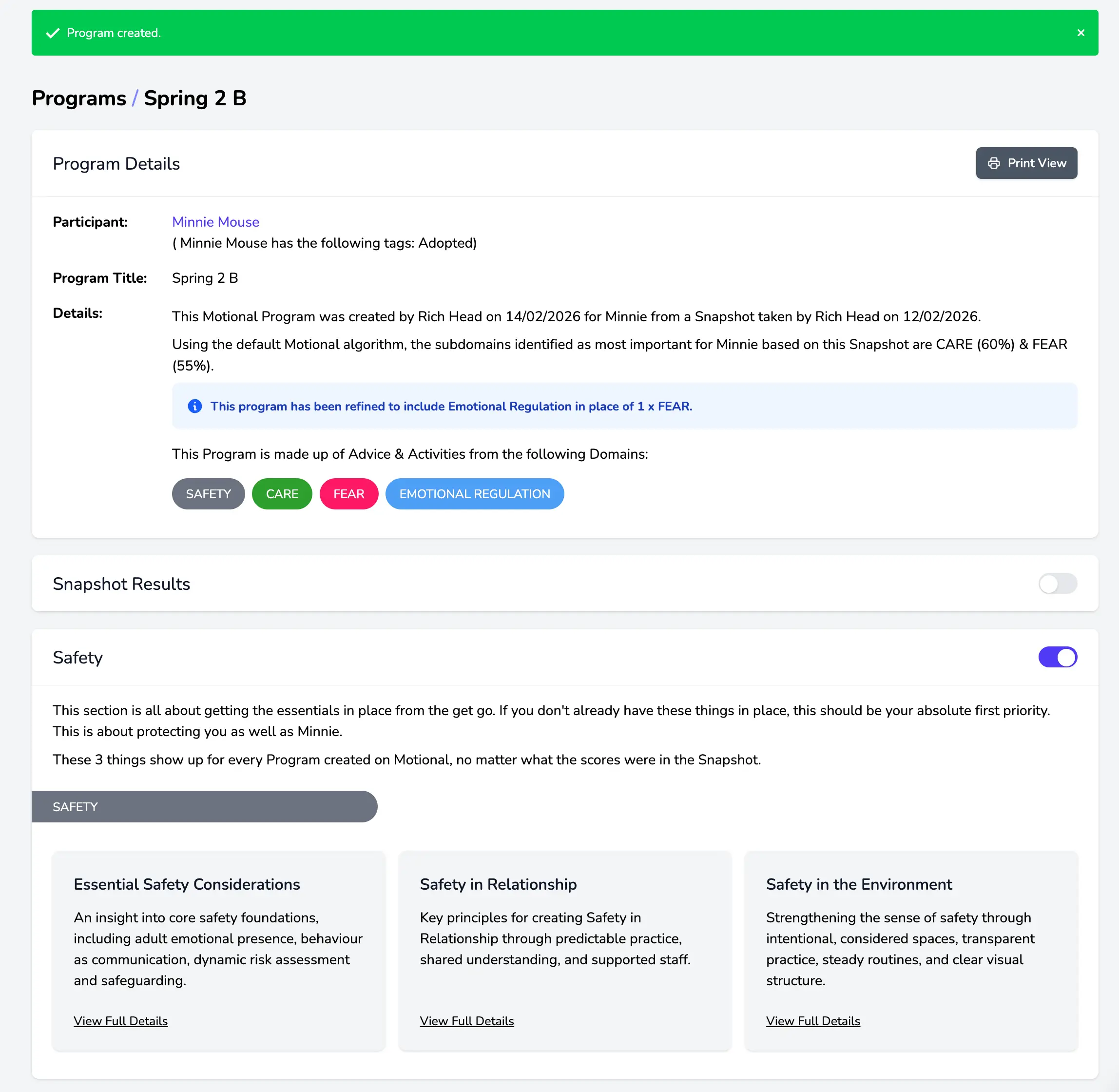
The Print View button provides a simplified layout for printing or saving as a PDF. You can choose which elements of the Program to include in your printed version.
Below this, you’ll find the Advice and Activities you selected. These suggestions are bespoke — generated from the Snapshot/Groupshot scores and, where relevant, refined using your professional judgement during the build process.
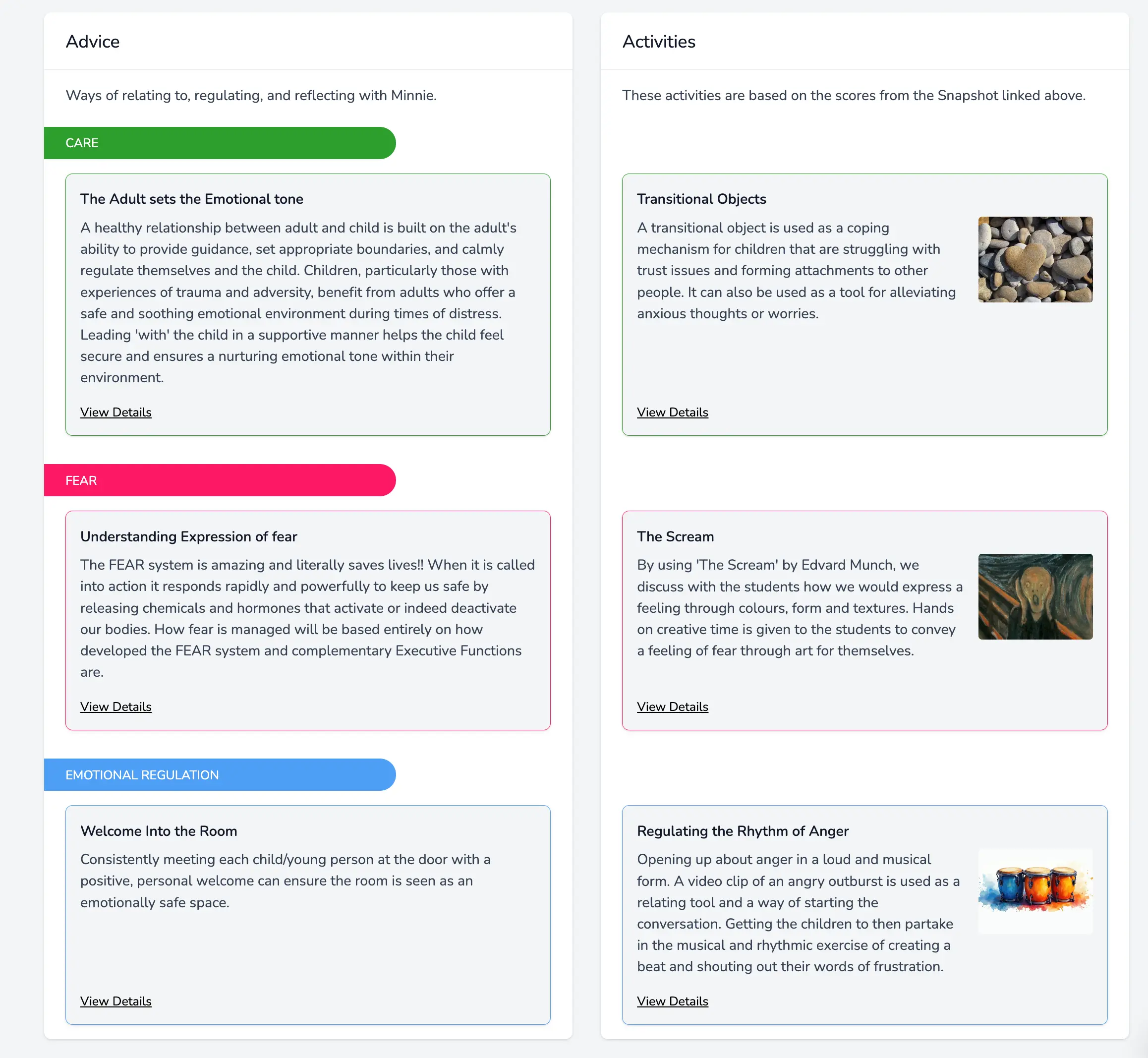
Your Program is now complete and ready to use.
Start by embedding the Advice consistently, then introduce Activities in a way that feels achievable and sustainable. Review the Program over time, and if the child or group’s needs change, consider completing a new Snapshot or Groupshot to ensure your next steps remain targeted.